
Getting the Latitude and Longitude from Bing maps

Pinpoint an exact spot.
To get the Latitude and Longitude from Bing maps you should centre the map on your point of interest, then do either of the following:
  1. Type javascript:map.GetCenter() in the address bar of IE and then hit ENTER. Your map will change to a page containing the Latitude and Longitude.
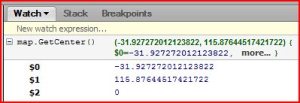
  2. In Firefox, using Firebug go to the Script tab and the in the right hand (Watch) pane enter javascript:map.GetCenter() into the New Expression field and hit ENTER. (see below)
SQL Server Management Studio & Windows Authentication across Domains

Getting access to a SQL Server in a different domain using SSMS.
When using SSMS to connect to a SQL Server in a different domain there is no way to type in an alternate DomainUsername through the UI. To connect to a SQL Server in a different domain using SSMS we need to do the following:
  • runas /netonly /user:[DOMAIN]\[USERNAME] “C:\Program Files\Microsoft SQL Server\100\Tools\Binn\VSShell\Common7\IDE\Ssms.exe”
  • You will then be promted for the users password which you should provide.
  • When SSMS starts up, type in the server name (or IP address) into the Connect To Server dialog and ensure the Authentication is set to Windows Authentication.
  • You do not need to worry about the Username/Password as this will be overridden. Press OK and you should be connected to the server in the different domain.

Silverlight & WCF projects in different solutions

Getting my WCF Service to talk to my Silverlight app in Visual Studio
 
I have been developing a Silverlight application to get data from a pre-existing WCF Service. The code for the service was already in production and was available in its own Visual Studio solution. In order to debug my Silverlight application, which was running from within a different solution, I needed to add a crossdomain.xml file to the root of the folder where the service was running from. This is necessary even though both solutions were using the ASP.Net Development Server (localhost) on different ports. A full explaination is available on MSDN for Making a Service Available Across Domain Boundaries. Tim Heuer also has a very good explaination of the problem and solution here.

Using different Endpoints in a WCF Service

Avoiding confusion when referencing a Service?
 
Whilst playing with a WCF Service for my Silverlight application I encountered the following error:
 
An endpoint configuration section for contract could not be loaded because more than one endpoint configuration for that contract was found
 
It seems that becuase my client config file contained multiple configuration endpoints, I needed to specify which endpoint to access during the service initialisation. Tim Heuer has a very good blog post on Managing service references and endpoint configurations for Silverlight applications which helped me to figure out this problem.

IE Silverlight vanishing trick!

Not really sure what caused this to happen?
 

I had just configured the VS 2008 development environment on a machine I dont normally use to use the November 2009 version of the Silverlight Toolkit. Having created a new C# Silverlight Navigation Application and put together some basic code I hit F5 and waited for my RIA to fire up so that I could debug it. What I was presented with was dialog box with the error message – ‘Unable to start debugging. Cannot locate Microsoft Internet Explorer.

I hadn’t changed any of my browers settings so I made sure that IE was set as the default browser, I checked that I could open up IE and do some general surfing and I even made sure that the Browse With… worked from within VS. Everything was OK except my ability to run from F5. A few minutes of research pointed me to a (translated) page which highlighted the problem and potential solution.

Navigating to HKEY_LOCAL_MACHINE\SOFTWARE\Microsoft\Windows\CurrentVersion\App Paths I found that the iexplore.exe key was missing. So here’s what I did:

  1. Added the iexplore.exe key to the  registry.
  2. Changed the (Default) REG_SZ value to C:\Program Files\Internet Explorer\iexplore.exe
  3. Added a new REG_SZ value called Path and set it to C:\Program Files\Internet Explorer
  4. Restarted my Visual Studio.

After making these changes, opening my project and hitting F5 it was working again. I have no idea what caused the Key to be removed in the first place but I can only think it was the Silverlight Toolkit installation process that did it???