
Azure func and Visual Studio

I had been running my Azure Functions locally to debug the processes when this morning the func.exe kept failing each time I pressed F5 and would not allow me to debug my code. The Storage Emulator on my machine was started and I could access it through the Storage Explorer and my application Properties were correct but func.exe would not fire up.

After a bit of head scratching I decided to fire up the func.exe outside of Visual Studio and run it against my project and func gave me the answer straight away.
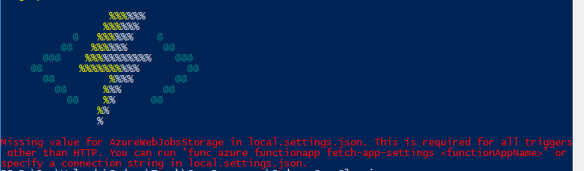
I had been playing around with my local.settings.json and the entry for AzureWebJobsStorage was empty. Because the func.exe shuts down straight away when running in Visual Studio I wasn’t able to see the error but I could when I ran it outside of the IDE.
VSTS – Package Manager with NuGet (Part 2)

Having successfully added NuGet pack  and  push tasks to my Build within VSTS, the next task was to separate out the push from the Build and use it within a Release. The main reason for this is to provide greater control over when a package is pushed to the VSTS package manager rather than after each build.

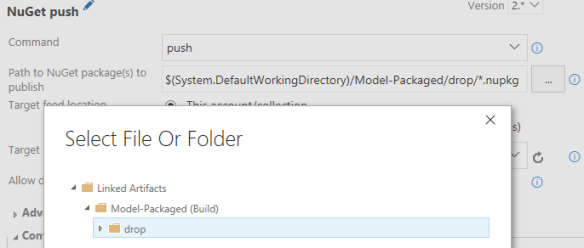
The first modification is to the Build definition to remove the NuGet push task. Next, I created a new Release definition with a single environment I called Package Manager. The Release definition contained one task and that was the NuGet push command. Since we had already created the package as part of the Build, the path to the NuGet package(s) to publish is available for us to select.

nuget-push

Two points worth mentioning here.

  • The path uses *.nupkg to ensure the Release picks up the latest build of the package and not a specific version.
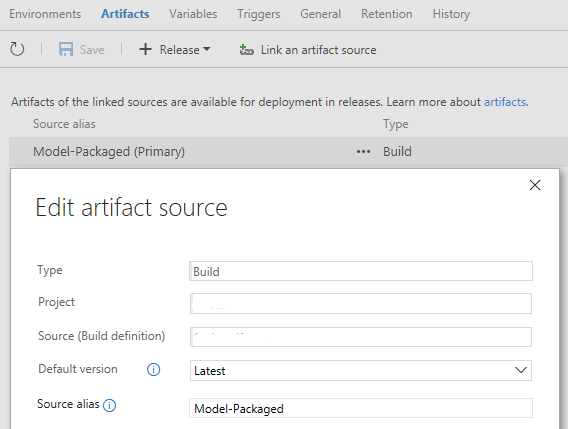
  • The path, …/Model-Packaged/… is an Artifact source alias defined in the Artifacts tab.
  • artifacts-source-alias

Once the Release environment has been created with the Push task pointing to our pre-existing Target feed we can create a release which will pick up the current NuGet package generated during the Build and push it into the feed in the Package Manager. One other point to remember is that the push will fail if you try to upload a package to feed with the same version number as the current package.


D365 Portal – Cache Tool

The D365 Portal needs to be configured to automate the clearing of the cache within the Portal for data that is modified in D365. As a Portal Administrator you can access a hidden portal page, once you have logged in, to manually clear the cache. After logging in, navigate to <portal url>/_services/about. On the page, in addition to some details about your portal is a Clear Cache button which forces the portal cache to be refreshed.

https://docs.microsoft.com/en-us/dynamics365/customer-engagement/portals/clear-server-side-cache

https://community.dynamics.com/enterprise/b/dynamics365portalssupport/archive/2017/01/19/portal-troubleshooting-part-one-stale-data-and-bad-requests

Microsoft.Dynamics.CRM.Between Dates

A quick example of using the Between function for the Dynamics 365 Web API.

$filter=Microsoft.Dynamics.CRM.Between(PropertyName='createdon',PropertyValues=["2017-01-01T00:00:01Z","2017-04-30T23:59:00Z"]) and statecode eq 0
  • The dates need to be defined in UTC format to ensure quality of the data returned. It can be specified as “mm/dd/yyy” but this may be confusing if you are operating in non-US date formats.
  • The Functions can be combined with your other standard filters e.g. statecode eq 0.