If you suffer the pain of using the ASP.NET Development Server (Cassini) and would like an alternative take a look at this post. The full download is available here.
IIS Express 7.5 Improves ASP.NET Development
Reply

In order to use the “Discover services in solution” functionality, the service projects must be based on one of the WCF project templates.
If you want to alter your existing project(s) so that they will be identified as projects containing WCF service(s), do the following:
* Right-click on the project in the Solution Explorer, and select Unload project
* Right-click the project again (this time the node will end in (unavailable) ) and choose Edit xxxxx.csproj
* In the first section, add the following line:
{3D9AD99F-2412-4246-B90B-4EAA41C64699};{FAE04EC0-301F-11D3-BF4B-00C04F79EFBC}
* Save and close the file
* Reload the project by right-clicking it again and choose Reload.
You should then be able to use the “Discover services in solution” functionality.
I had just configured the VS 2008 development environment on a machine I dont normally use to use the November 2009 version of the Silverlight Toolkit. Having created a new C# Silverlight Navigation Application and put together some basic code I hit F5 and waited for my RIA to fire up so that I could debug it. What I was presented with was dialog box with the error message – ‘Unable to start debugging. Cannot locate Microsoft Internet Explorer.‘
I hadn’t changed any of my browers settings so I made sure that IE was set as the default browser, I checked that I could open up IE and do some general surfing and I even made sure that the Browse With… worked from within VS. Everything was OK except my ability to run from F5. A few minutes of research pointed me to a (translated) page which highlighted the problem and potential solution.
Navigating to HKEY_LOCAL_MACHINE\SOFTWARE\Microsoft\Windows\CurrentVersion\App Paths I found that the iexplore.exe key was missing. So here’s what I did:
After making these changes, opening my project and hitting F5 it was working again. I have no idea what caused the Key to be removed in the first place but I can only think it was the Silverlight Toolkit installation process that did it???
I had been trying to set up a development environment for Visual Studio so that instead of using the in-built Development Server (Cassini) I could use IIS. Since I had to develop on a Windows XP machine my first problem is that I could not create more that one Web Site under IIS 5.1 so I had to resort to using Virtual Directories for the applications (A Web app and a WCF app). This differed from the live setup where each was configured under its own web site and this is where my problems started. When I fired up the web application I was greeted with this error – The virtual path ‘/App_Resources/dev/mycontrol.ascx’ maps to another application which is not allowed.
The web application used the concept of loading controls from embedded resources using the LoadControl() method and this was causing the error. In the live environment the application is always at the root for the website because of the deployment configuration, however in my scenario the web app was located in a virtual directory off the root web site. The issue occurs because the virtual path ‘/App_Resources/’ assumes that it is at the web site root rather than the application root. To solve the problem I just need to add a tilde (~) to the front of the virtual path in the managed code so it became ‘~/App_Resources/dev/mycontrol.ascx’. I also found instance in the JavaScript code where this situation occurred but this time we just need to use the dot notation to indicate the root folder. The virtual path in the script became ‘./App_Resources/dev/mycontrol.ascx’
For information on loading webforms and usercontrols from embedded resources take a look at http://www.codeproject.com/KB/aspnet/ASP2UserControlLibrary.aspx
If you use Microsoft’s Enterprise Libraries at all then you may have seen this tool before…
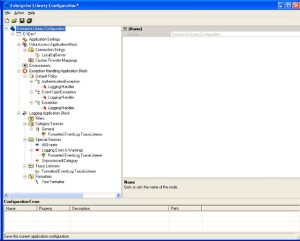
I found this tool while doing some research on the Enterprise Library entries in an app.config file and realised it could be very useful for the application I was working on. My problem came when I tried loading the app.config file into the EntLibConfig.exe as it reported that one or more errors had occurred during the loading process. The errors I were getting appeared as "…The located assembly’s manifest definition does not match the assembly reference." at the bottom of the screen. The app.config file was valid as my application had been running without any issues.
My search for an answer took me to this page – http://blogs.msdn.com/tomholl/archive/2007/04/19/avoiding-configuration-pitfalls-with-incompatible-copies-of-enterprise-library.aspx – which explained that I was trying to load an app.config file referencing assemblies that were not signed. Taking a look at my entries in the app.config file for the Microsoft.Practices.EnterpriseLibrary I found that all the PublicKeyToken values were null. Since the EntLibConfig.exe was using signed assemblies this was the reason for the errors.
My next task was to find out what the Public Key Token value was for the Enterprise Library assemblies. For that I used the Strong Name Utility (sn.exe). This link gave me some useful information about using SN.exe – http://blogs.msdn.com/miah/archive/2008/02/19/visual-studio-tip-get-public-key-token-for-a-stong-named-assembly.aspx
Having entered the correct Public Key Token values into the app.config my configuration file now loaded into the EntLibConfig.exe without any errors and I was able to do the necessary editing.
During an automated build process I came across an error that MSBuild had thrown – ‘Error parsing the nested project section in solution file’. The problem stems from a change to a GUID for one of the Nested Projects within the Solution File. When comparing a Solution File for a successful build to the failed build I found the GUID had changed. To rectify the error I added a blank text file to the solution, saved the changes to the solution file, removed the text file and re-saved the solution file. This resolved the issues as the next build was successful.
The GAC holds assemblies installed on the local host that are available for shared use by other code. The Zap Cache is a sub-cache of the GAC that holds assemblies that have been precompiled into native machine code. Zap Cache assemblies are typically Fully Trusted libraries that are used frequently by the CLR itself, so precompilation boosts performance.
If you would like to know more, take a look at http://www.nsa.gov/ia/_files/app/oldFiles/NET_Framework_Sec1.pdf
Looking in the Event Log I also found this entry around the time the error message was generated;
Event Type:Error
Event Source:MsiInstaller
Event Category:None
Event ID:1008
Date:12/18/2006
Time:12:18:31 PM
Description:
The installation of C:DOCUME~1…LOCALS~1TempZNWA0VS80sp1-KB926601-X86-ENU.msp is not permitted due to an error in software restriction policy processing. The object cannot be trusted.
After doing a bit of research I came across others who had experienced the same problem and they directed me to this Knowledge Base artcile http://support.microsoft.com/default.aspx/kb/925336 which provided the solution. After applying the update and rebooting the server I was able to install the Service Pack.
 GP23 Consulting