Reserved XAP file names (‘..Resource.dll’)

My Silverlight app was referencing an external assembly, called Library.Resources.dll, which contained some images. When I set my UriSource to UriSource="/Library.Common;Component/Images/view.png" my image appeared at design time without any problem. However, when I ran the application the image would not appear.

After inspecting the contents of my XAP file I noticed that the resource assembly was missing. Apparently, assembly’s ending in Resource.dll are not allowed in the XAP which was why mine was missing. I changed the name of the assembly to Library.Common, as well as my UriSource then the assembly was included in the XAP file and and my images successfully appeared.

The remote server returned an error: NotFound

Always start with the obvious…if you are using Silverlight make sure you have a basicHttpBinding endpoint specified for the WCF service. Otherwise, the request will not even make it to the server because the relevant endpoint is ‘NotFound‘.

VS 2010 – Discovering web services in your solution

In order to use the “Discover services in solution” functionality, the service projects must be based on one of the WCF project templates.

If you want to alter your existing project(s) so that they will be identified as projects containing WCF service(s), do the following:

* Right-click on the project in the Solution Explorer, and select Unload project
* Right-click the project again (this time the node will end in (unavailable) ) and choose Edit xxxxx.csproj
* In the first section, add the following line:
{3D9AD99F-2412-4246-B90B-4EAA41C64699};{FAE04EC0-301F-11D3-BF4B-00C04F79EFBC}
* Save and close the file
* Reload the project by right-clicking it again and choose Reload.

You should then be able to use the “Discover services in solution” functionality.

Feature activation error

The element of type ‘Module’ for feature ‘<feature name>‘ (id: 03fffd3f-5b80-4507-87ed-ab8797883b04) threw an exception during activation: Cannot complete this action.  Please try again.

Whilst trying to activate a new feature I had deployed to SharePoint I got this error (above). My feature worked fine during development but the activation just kept throwing an error. The error wasn’t very helpful either and the stack trace in the Unified Logging Service didn’t really give me any more clues.

My Elements.xml file had two Modules specified. One for a web page and one for the web parts that were going to sit on the web page. I tinkered with the Elements.xml file and commented out the page module to see if that was the problem. Low and behold when I tried the activation this time the process completed successfully. Somewhere in the web page module there was a conflict!

<Module Name="WebPages" Path="" Url="" RootWebOnly="True">
 <File Url="MyPage.aspx" Type="Ghostable" IgnoreIfAlreadyExists="True">
 <Property Name="Title" Value="MyPage" />
 <NavBarPage Name="MyPage" ID="1003" Position="End" />
 </File>
 </Module>

It turns out that the problem was the ID attribute value for the NavBarPage element. This feature was being inserted into a site with an existing entry in the navigation area called ‘MyPage’ with an ID of 1002. The solution was to got to the Top Link Bar option under the Site Settings and remove the unnecessary link.
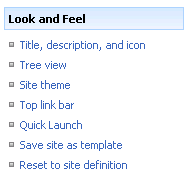
Having done that and changed the ID value to match the existing value I was able to successfully activate the feature.

Redundant MOSS Features

Finding & removing SharePoint features.
I had been trying to upgrade an existing solution using STSADM as it contained some additional features. Unfortunately, the command was giving me the following error:
The solution can not be deployed.  Directory “<feature name>” associated with feature ‘351cc41f-19b9-48f2-8654-7f29da7b89b2’ in the solution is used by feature ‘5cb0e7cd-75ed-4faa-9cec-914b01338a45’ installed in the farm. All features must have unique directories to avoid overwriting files.
I needed a way to find out what this existing feature {5cb0e7cd-75ed-4faa-9cec-914b01338a45} was and where in the farm it was being used. After the usual search for enlightenment I found the FeatureAdmin tool to help me identify the location of this feature. In this case, it happened to be redundant feature that was not being used anywhere on the farm but had been left hanging around. The FeatureAdmin tool was able to uninstall the feature definition and allow me to perform the upgrade successfully.

Silverlight ListBox and the ItemContainerStyle

Stretching out the Listbox content.
 
In order to get the content of my Listbox ItemTemplate to fill out the entire width of the Listbox control, I simply needed to add an ItemContainerStyle as follows:
 

<UserControl.Resources>

    <Style x:Key="ListBoxItemStyle1" TargetType="ListBoxItem">

        <Setter Property="HorizontalContentAlignment" Value="Stretch"/>

        <Setter Property="HorizontalAlignment" Value="Stretch"/>

    </Style>

</UserControl.Resources>

 
The solution came from here…

Silverlight 3 DataTriggers

Using DataTriggers to control Storyboard actions.
 
More details are available here…

External and Local Resources in App.xaml

The property ‘Resource’ is set more than once.
 
Working on my Silverlight application that contained local and external resources I was getting the error (above) in the App.xaml file. The error was displayed even thought the build was successful and my application ran. I found the solution to my problem here.

Getting the Latitude and Longitude from Bing maps

Pinpoint an exact spot.
To get the Latitude and Longitude from Bing maps you should centre the map on your point of interest, then do either of the following:
  1. Type javascript:map.GetCenter() in the address bar of IE and then hit ENTER. Your map will change to a page containing the Latitude and Longitude.
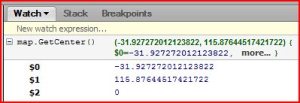
  2. In Firefox, using Firebug go to the Script tab and the in the right hand (Watch) pane enter javascript:map.GetCenter() into the New Expression field and hit ENTER. (see below)

SQL Server Management Studio & Windows Authentication across Domains

Getting access to a SQL Server in a different domain using SSMS.
When using SSMS to connect to a SQL Server in a different domain there is no way to type in an alternate DomainUsername through the UI. To connect to a SQL Server in a different domain using SSMS we need to do the following:
  • runas /netonly /user:[DOMAIN]\[USERNAME] “C:\Program Files\Microsoft SQL Server\100\Tools\Binn\VSShell\Common7\IDE\Ssms.exe”
  • You will then be promted for the users password which you should provide.
  • When SSMS starts up, type in the server name (or IP address) into the Connect To Server dialog and ensure the Authentication is set to Windows Authentication.
  • You do not need to worry about the Username/Password as this will be overridden. Press OK and you should be connected to the server in the different domain.