CRM 2011 Workflow Registration: Access Denied

During a deployment of a custom workflow to a CRM 2011 server I started to encounter errors in the plugin registration process. The Workflow Assembly would register with CRM but the Workflow activity registration would fail. I would get the following error

Unhandled Exception: System.ServiceModel.FaultException`1[[Microsoft.Xrm.Sdk.OrganizationServiceFault, Microsoft.Xrm.Sdk, Version=5.0.0.0, Culture=neutral, PublicKeyToken=31bf3856ad364e35]]: Exception retrieving custom activity info - Could not load file or assembly 'Microsoft.Crm, Version=5.0.0.0, Culture=neutral, PublicKeyToken=31bf3856ad364e35' or one of its dependencies. Access is denied.

The CRM server I was deploying to was shared with a number of other developers and this particular server had been experiencing other issues during the day. Once the server had been stabilised and the organisations were working once more I found I was still encountering the same issues. I was using the Plugin registration tool, was connected as the CRM Administrator to perform my deployments but it was still telling me that my access was denied.

It turns out that the Server/bin folder on the CRM server was missing some permissions which was why I was getting the Access Denied message. In particular, the CRMServer\User group was missing and once I had reinstated it my Workflows would register the assembly and custom activities successfully.

ASP.NET Web API, ELMAH and Folder Permissions

This post just covers a few useful things I have found while I have been developing an ASP.NET Web API that uses AttributeRouting for Web API and ELMAH for Web API.

I found AttributeRouting much easier to configure and administer than using MapHttpRoute in the WebApiConfig.cs file; especially using the RoutePrefix at the controller level. Running tests on the attributes using the Route.axd was also very straight forward. I also found Fiddler (v4.4.8.0) to be very helpful in throwing different unit tests at my newly created web API. This is simple and powerful configuration that works straight out of the box.

Using the Elmah.Contrib.WebApi took a little more configuring to get working but I found a good place to start, after you had installed the NuGet packge was on the sample web.config page. This provides detailed examples of the configuration settings needed for the different types of log stores as well the basic settings for the different flavours of IIS. There were a couple of additional tweaks I would recommend:

  1. Since I am not generating any View I removed the filters.Add(new HandleErrorAttribute()); in the FilterConfig. The HandleErrorAttribute to serve up a View called Error. Since this is a Web API project and I don’t have any Views then it wasn’t needed.
  2. Instead, there is a rather neat process for capturing unhandled errors that I found here.
  3. Finally, if you are using a simple XML file to store your errors you need to make sure that the security configuration is correct for the folder where the files will be generated and stored. For example, I had my files stored in the App_Data folder under the root of the web site on IIS 7.5. The application pool for this site was running under the ApplicationPoolIdentity account and so this account needed to have write permissions to the App_Data folder. Instructions for doing this can be found here under the Securing Resources section of the article.


OpenID and WordPress mapped Domains

What happens to your OpenID account when you map your WordPress account to another domain?

The answer is that when you try to login to other OpenID sites (e.g. StackExchange) your login is not recognised because it is now mapped to the new domain. Even if you go ahead and create a new account on the other site with the new (mapped) domain, you can’t link your old domain to the new account because, for WordPress at least, your OpenID just re-directs to the new domain.

To solve the problem I had to do the following:

  1. Login to my WordPress account and change the Primary Domain back to my previous https://isolatedstorage.wordpress.com domain.
  2. Login to StackExchange, go to my account page and select my logins. When the pop-up window opens select the add more logins… option and enter my new (mapped) domain.
  3. Logout of StackExchange and then go back into the WordPress dashboard and revert the Primary Domain to the newly mapped domain.

This now allows me to login to StackExchange with either OpenID domain identifier.

Visual Studio 2013 and Visual Studio Online

When I first saw Visual Studio online being advertised I didn’t think it would be something I would use that much. However, in the process of creating a Windows Phone application I was reading about the availability of Team Foundation Server as part of the VS Online package. Since I was creating my application in VS 2013 on my machines at home it was great to find out that I could have my very own TFS setup in the cloud; not only that but its also FREE for the first five users. This allows me to have the useful features of TFS and know that my code follows me where ever I happen to be developing.

I still prefer my ‘on machine’ IDE for doing my development and doing it on my Surface 2 Pro has proved to be very effective. The performance of the machine is fantastic and with the all day battery life I can do as full days work on a single charge. The backlit keyboard on the Type 2 cover also helps when you have ideas in the middle of the night!

Windows Xbox Music App / Nokia Music playback issue

One of the problems I had with the Xbox Music App and Nokia Music App on Windows 8 was getting my music to play!

Having done the upgrade to 8.1 I was hoping the problem would be solved….but no…still just the error message withe the error number 0xc00d11cd (0x88890001) on the Xbox app. The Nokia Music app was even less helpful with its error message.

I checked the suggested solutions on the Xbox Support page but they didn’t work. Spent 20 mins chatting to Aaron from MS support about the issue. Even creating a new local profile and logging in that way didn’t help.

The next option was to search for other people with the same problem. The nearest I could find was a suggestion to modify the following registry key – HKEY_LOCAL_MACHINE\SOFTWARE\Microsoft\Windows\CurrentVersion\Audio\DisableProtectedAudioDG except I didn’t have any entry for DisableProtectedAudioDG so I created the DWORD value and set it to zero. A quick reboot later, restart the app and cross my fingers.

Problem solved. Both the Xbox Music App and Nokia Music will now play existing and streamed music. What’s annoying is that music played through Zune didn’t need this fix.

Using HtmlHelper.GenerateLink

Since the documentation for HtmlHelper.GenearteLink is a bit limited I thought I would document some of my understanding of its usage. The application we are developing uses a static class, called HtmlExtensions, that contains a number of methods to build MvcHtmlString’s. One of those methods was used to generate an anchor tag containing a Controller, Action and Id; for example, Id. Using the MvCHtmlString.Create method the first version of this helper method was written as

return MvcHtmlString.Create(string.Format("<a class="my-link" href="Controller/Action/{0}">{0}</a>", myNumber));

This worked fine in the development environment (VS 2012 with IIS Express 8) but when it was deployed to a virtual directory on the Test server we found that the links would not work because the paths were not being resolved correctly. With experience comes knowledge and I found people who had identified similar problems but using the GenerateLink method; I worked on converting the code above to use that method.

public static MvcHtmlString MyLink(this HtmlHelper helper, string myNumber)
{
    string anchor = HtmlHelper.GenerateLink(helper.ViewContext.RequestContext, 
                        helper.RouteCollection, myNumber, null, "Action", "Controller", 
                        new System.Web.Routing.RouteValueDictionary() { {"Id", myNumber } }, 
                        new System.Collections.Generic.Dictionary<string, object>() { { "class", "my-link" } });
    return MvcHtmlString.Create(anchor);
}

The GenerateLink method listed above produces virtually the same return string value as the initial implementation but this time it takes into account the RequestContext to generate the correct href attribute for the anchor. The other parameters worth noting are the RouteValueDictionary and the htmlAttributes Dictionary. The RouteValueDictionary allows us to define the final part of the Route Url, which in our case was the Id – {controller}/{action}/{id}. The htmlAttributes Dictionary is just a simple Key/Value pair of additional attributes required by the anchor tag. For the code example above to work you would need to replace the “Action” and “Controller” parameters with an actual Action name and Controller name, but other than that this provides a more robust solution to the problem.

MVC Sites using Windows Authentication trying to redirect to a login page

One of the issues I have encountered whilst developing MVC apps that require Windows Authentication was the problem that it keeps wanting to redirect to the login page when there isn’t one. The problem manifested itself when I was using IIS to Browse to my application running as a virtual directory under my default web site; it kept wanting to redirect to ‘~/Index’ and since my default route was not configured to find an Index Controller it would return a Page Not Found error.

After doing some digging I realised that the web.config file contained the following entry:

<authentication mode="Windows">
    <forms loginUrl="~/Index"/>
</authentication>

Replacing the loginUrl attribute with “~/Home/Index” solved the problem as it matched my default Route; but I knew that I wasn’t using forms authentication and had no login page. After doing some more research I came across a few sites which recommended adding the following keys to the <appSettings> section:

<add key="autoFormsAuthentication" value="false" />
<add key="enableSimpleMembership" value="false"/>

Having made the additions and removed the <forms> tag the site functioned as expected and the requests for the default route were handled correctly.


TeamCity – Upgrade to 7.1 & Migrate to SQL Server

Having gone through the process of upgrading a TeamCity server from 7.0.3 to 7.1 and then migrating to a SQL Server back end I thought I would highlight some of the problems and solutions I encountered.

First of all, this article helped me immensely in getting through the process. I followed the exact same process listed in the article to upgrade my TC server from 7.0.3 to 7.1 and then again when migrating to a SQL Server back end. The only notable difference was that I did not need to specify the SQL Server port number (1433) in the connectionUrl entry within the database.properties file. Also, before doing the upgrade to SQL Server make sure you can login to your new (empty) TeamCity database using a TCP/IP connection otherwise the maintainDB command will fail. You need to ensure that the SQL Browser service is running and then you can test a TCP connection either by;

  • Using the SqlCmd Utility and specifying the tcp protocol for the -S flag
  • Using SSMS and selecting the Options >> button and setting the Network Protocol under the Connection Properties tab

SSMS Options

The other part of the upgrade process that is worth a mention, for 7.1 at least, is the NTLM authentication. Make sure you read this article first, and complete the changes, before you complete the tasks listed in this article. Since we had made the switch a SQL Server back end I did come across one gotcha when trying to login to TeamCity after changing to NTLM authentication. As per the documentation “… on switching from one authentication to another you start with no users (and no administrator) and will be prompted for administrator account on first TeamCity start after the authentication change.” However, when I tried to create a new administrator account it would fail saying username or password is incorrect and I could not login to my new TeamCity server. To get around the problem I had to do the following;

  • Stop the TeamCity Server service.
  • Take a backup of my TeamCity database (just to be safe, but this is optional).
  • In SSMS open up the users table in the TeamCity database and look for the administrators entry in the table – this should be row #1.
  • In the auth_type column change the entry from DefaultLoginModule to NTDomainLoginModule.
  • Restart the TeamCity Server service

I was then able to login to the server as the administrator to ensure the settings were correct and new users to the system could automatically login to the TeamCity server.

Named Pipes Provider, error: 40 – Could not open a connection to SQL Server

Named Pipes Provider, error: 40 - Could not open a connection to SQL Server

This one was frustrating to resolve as there are a number of reasons this error could occur and lots of information out there about fixing the problem. My scenario was this; my IIS 7.5 web server was throwing this error when trying to connect to a SQL Server database on a different machine. I would get this error when calling the web application from a third machine. One of the frustrations was that if I made the same request from my browser on the actual web server I did not get any error, just the page I was expecting.

After searching the net, trying a number of the suggested solutions, triple checking my connectionString entry in the web.config I remembered that I hadn’t tried using the IP Address in the connectionString rather than the server name. Making this change solved my problem and my web application worked as expected from any machine. As it turns out, supplying the FQDN (Fully Qualified Domain Name) in the connectionString also worked. So now I had to try and figure out why the the web server was having trouble resolving to this particular database server?

Running the TRACRT command-line against my database server name gave me an unexpected response; the name of another server. So that got me thinking about whether the database server had been renamed recently – it was a VM that I was not responsible for maintaining. So I opened up SSMS and ran the command SELECT @@SERVERNAME AS ‘Server Name’. This gave me the name different name altogether! If I put this third server name into the connectionString that also worked, without needing to use the FQDN.

Some further investigation later revealed that the VM was a copy of another VM which was then renamed twice but no one had followed the procedure for renaming the SQL Server instance. This was what was contributing to the problems with the server name being resolved correctly.

Make your Outlook.com email address the default for sending emails

If you want to change your hotmail address (etc) to use the new Outlook.com domain and make it the default when sending emails please try the following;

  • Log in to your Outlook.com account (using your hotmail address etc
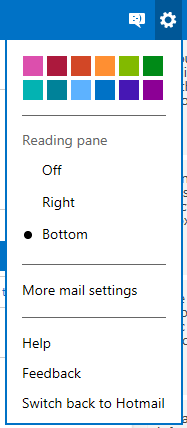
  • Under the options icon select More mail settings
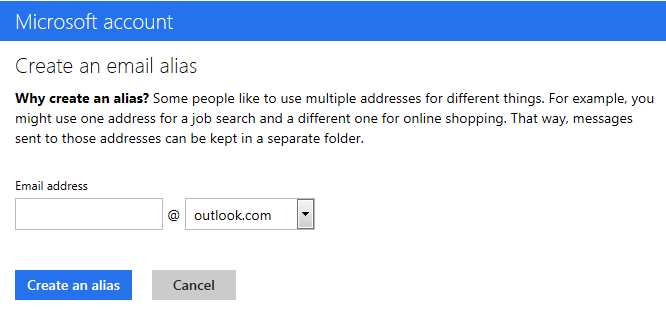
  • Select the Create an Outlook alias option
  • Enter your new Outlook.com address and select Create an alias
  • Wait until you receive email confirmation that your alias has been created.
  • Log out and log back into Outlook.com to make sure it picks up the new alias.
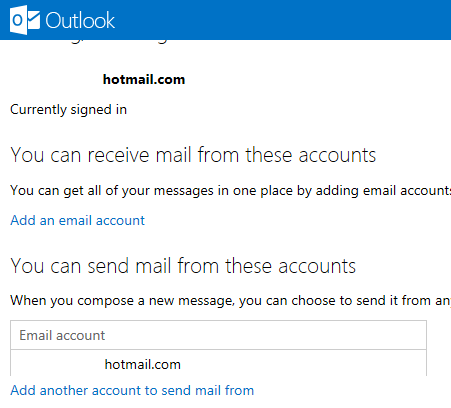
  • Go back into the More mail settings again and this time select Sending/receiving email from other accounts.
  • Select the Add another account to send email from option.
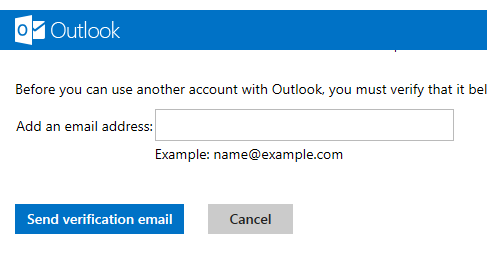
  • Enter your new Outlook.com alias into the field and click Send verification email
  • Wait for the verification email to arrive. When it does click on the link to verify the Outlook.com address.
  •  Go back into the More mail settings once more and again choose Sending/receiving email from other accounts. This time you should see your new outlook.com account listed under the ‘You can send mail from these accounts’ section. You then just need to select the Use as default option next to your Outlook.com alias.
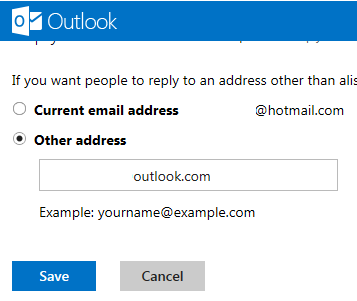
  • The last thing I have done, under More mail settings, is change the Reply-to address option and set that to ‘Other address’ using the new Outlook.com alias.

Now when I compose an email it automatically uses the new Outlook.com email alias.